How does the Actuals section work in Dashboards?
In Modeliks Dashboards, the section called Actuals allows you to input the financial results of your business.
Actual financial results are the real financial results of your business for the previous months and years, as recorded in your accounting records. Once you input your actuals, our system automatically generates all the dashboards for you ✔️
While we are working on integrating with popular accounting tools, for now, you can manually enter your actuals in Modeliks 🤝
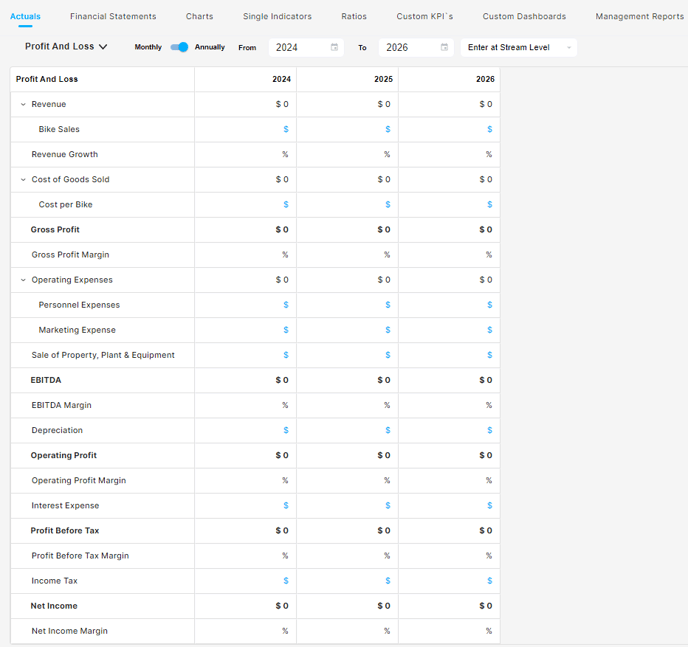
To input your actual financial results, start by selecting the financial statement you want to enter data for ✔️ If you're looking to enter revenue and expenses figures, you'll be working with the Profit & Loss statement.
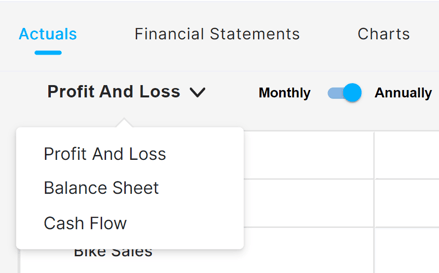
The Balance Sheet statement is where you enter information about your assets, liabilities, and equity. Lastly, for cash-related data, you'll use the Cash Flow statement.
🔎 The structure of your profit & loss, balance sheet, and cash flow statement in the Actuals follows the same structure as the financial plan you created in the financials section.
This means that all the revenue streams, expenses, assets, liabilities, and equity you included in your financial plan will be visible here, and you can input the actual results for each of them.
If you haven't created a financial plan yet, it's important to start there and create your plan first 💪
If you come across an account in your accounting records that aren't displayed in the Actuals section, you can easily add it to your financial plan.
Simply go to the revenue section, and add the required information to create the required revenue stream. Once you return to Dashboards, then Actuals, you'll see the newly created account and be able to input actual data for it.
Next, choose the period for which you want to input data. When you start using Modeliks Dashboards for the first time, you'll likely enter data for the past twelve months and one to three years.

After this initial data input, you'll only need to enter data once a month, and specifically for the current month.
If it's March 2023, you'll input data for March only ✅
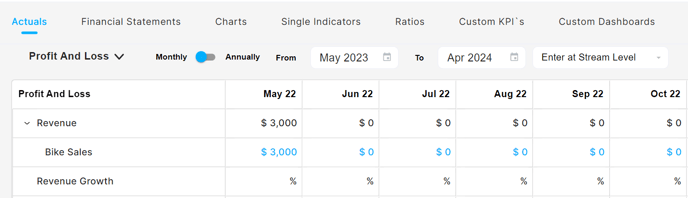
📌 Finally, you have the option to input data at either the Stream Level or the Driver Level ⭐
Stream Level is suitable for most companies as it allows you to enter data for each revenue stream or expense category. You can input the total revenue for each revenue stream.
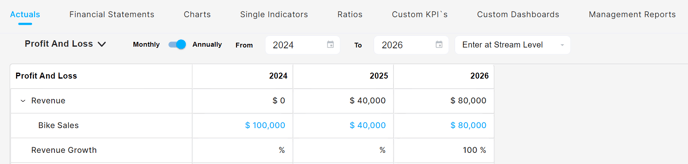
Driver Level is best If you need more detailed information for custom reports. Here, you can input data such as the number of units sold and the unit price for a specific revenue stream.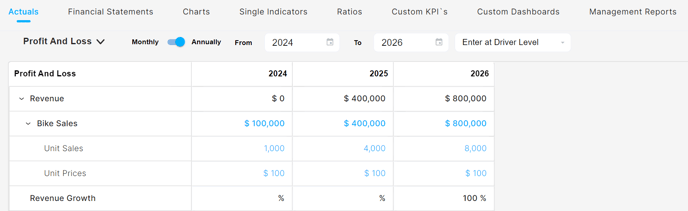
Now that you're ready to input your actual financial data into Modeliks, let's explore the different methods available.
1. Type in the data directly ✍️
2. Copy and paste data from Excel spreadsheets ✅
3. Download an Excel template from Modeliks, fill it in with your actuals, and then upload it back into the system ✔️
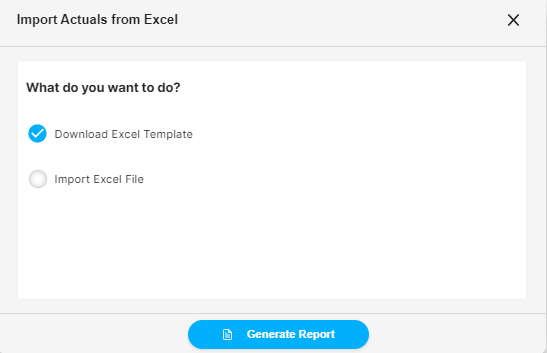
📝 Edit your numbers
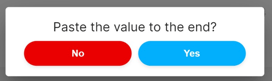
Keep in mind that blue-colored numbers are editable right at spot, black numbers are calculations and the arrow option allows you to paste the value to the end.

Once you've put your actual numbers into Modeliks, you can use our awesome dashboards to learn important things about your business's money!
❣️ Discover the full potential of Dashboards' Actuals by watching our easy-to-follow video!
Related Articles
Financial Statements: How does it work?
Basically, the Financial Statements tab in Dashboards helps you analyze and compare your financial performance effortlessly. Let's discover how it works in simple terms ? Step 1: Choose Your Statement You can start by selecting the financial ...How to create Custom Dashboards?
Streamline your financial reporting by creating personalized dashboards for charts that matter most to you. With the Custom Dashboards, you have the power to add only the charts that you want to regularly monitor, creating a customized summary ...How to select Single Indicators in Modeliks?
Indicators serve as measurable metrics that offer insights into various aspects of a business's financial performance. In Modeliks, under the Dashboards module, you can easily access the "Single Indicators" section, which contains all the relevant ...What kind of Charts are available?
Discover revenue breakdowns, cost analysis, asset and liability insights, and the popular bridge & waterfall charts. The beauty of these charts lies in their automatic generation, making them incredibly convenient for you. With just a few clicks, you ...How to create a Custom KPI List?
Custom KPIs offer valuable insights tailored to your business's unique value drivers and indicators. KPI stands for Key Performance Indicators - Custom KPIs offer valuable insights tailored to your business's unique value drivers and indicators. ...