How to select Single Indicators in Modeliks?
Indicators serve as measurable metrics that offer insights into various aspects of a business's financial performance.
In Modeliks, under the Dashboards module, you can easily access the "Single Indicators" section, which contains all the relevant indicators for your business.
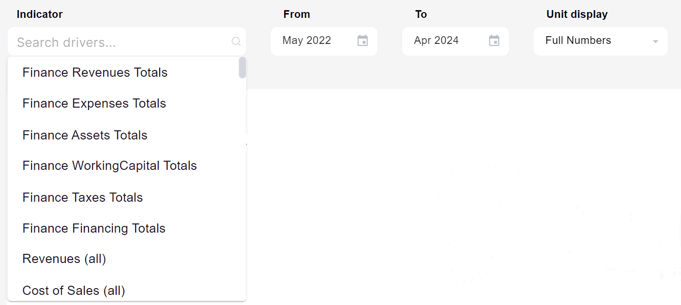
Selecting the Indicator 🔍
To begin viewing your single indicators in Modeliks, start by navigating to the top left side of the platform. Here, you will find a dropdown menu that lists all available indicators. The indicators cover various aspects of your business, such as revenue, expense, assets, working capital, taxes, financing, net cash flow, depreciation, and more. Choose the specific indicator you wish to analyze from the dropdown menu.
Setting the Period and Unit Display ✔️
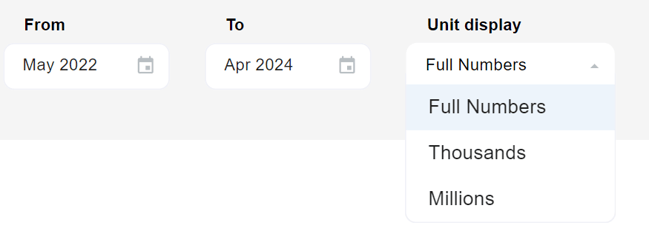
After selecting the desired indicator, proceed to Set the Period for analysis. Modeliks allows you to choose the time frame by specifying the month and year.
Here, you have the option to adjust the Unit display for your indicators. Whether you prefer full numbers, thousands, or millions, Modeliks offers this functionality to suit your preferences and facilitate easy comprehension of the data.
 Analyzing the Indicator Comparison 📊
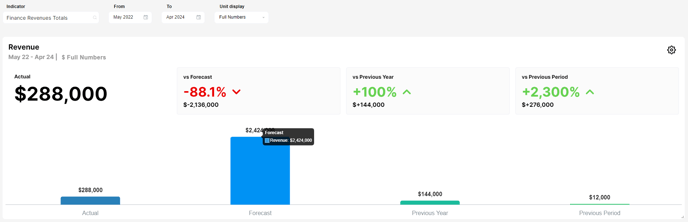
Once you have chosen the indicator and set the period and unit display, Modeliks provides a comprehensive chart comparison for all four periods: Actuals, Forecast, Previous Year, and Previous Period. This comparative analysis helps you understand the performance trends of your selected indicator across different time frames.
Depending on the indicator selected, Modeliks offers additional features to enhance your analysis.
👉 If the indicator includes the word "Totals" you can access the summed-up totals of your added revenues.
This feature provides a comprehensive overview of the cumulative performance for the specified indicator.
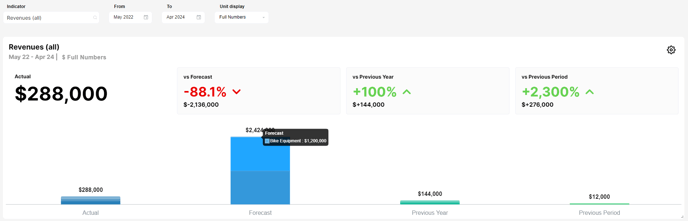
👉 If you select an indicator with the word "All" Modeliks enables you to view all your revenues displayed separately in a visually intuitive bar chart.
Each revenue component is color-coded, allowing for a clear distinction and easier analysis of individual revenue streams.
Modeliks empowers you to unlock the power of your data and enhance your business planning process 🌟
Related Articles
How to create a Custom KPI List?
Custom KPIs offer valuable insights tailored to your business's unique value drivers and indicators. KPI stands for Key Performance Indicators - Custom KPIs offer valuable insights tailored to your business's unique value drivers and indicators. ...How does the Actuals section work in Dashboards?
In Modeliks Dashboards, the section called Actuals allows you to input the financial results of your business. Actual financial results are the real financial results of your business for the previous months and years, as recorded in your accounting ...What kind of Charts are available?
Discover revenue breakdowns, cost analysis, asset and liability insights, and the popular bridge & waterfall charts. The beauty of these charts lies in their automatic generation, making them incredibly convenient for you. With just a few clicks, you ...How to create Custom Dashboards?
Streamline your financial reporting by creating personalized dashboards for charts that matter most to you. With the Custom Dashboards, you have the power to add only the charts that you want to regularly monitor, creating a customized summary ...Financial Statements: How does it work?
Basically, the Financial Statements tab in Dashboards helps you analyze and compare your financial performance effortlessly. Let's discover how it works in simple terms ? Step 1: Choose Your Statement You can start by selecting the financial ...