How to create Custom Dashboards?
Streamline your financial reporting by creating personalized dashboards for charts that matter most to you.
With the Custom Dashboards, you have the power to add only the charts that you want to regularly monitor, creating a customized summary dashboard with your most important charts.
Step 1: Creating a Custom Dashboard
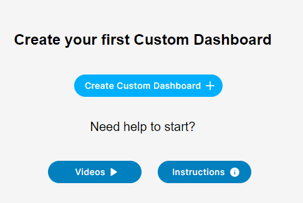
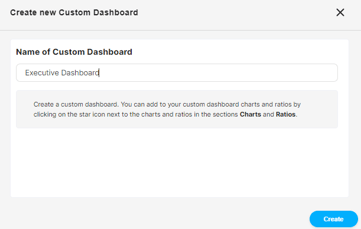
To create a custom dashboard, simply click the "Create Custom Dashboard" button. Give your new dashboard a name that reflects its purpose. Let's call it the "Executive Dashboard" for this example. After entering the name, click save to create your custom dashboard ✅
Step 2: Adding Charts to Your Custom Dashboard
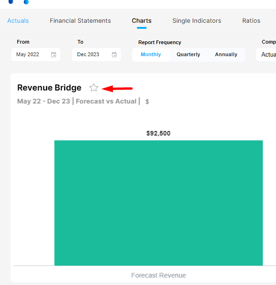
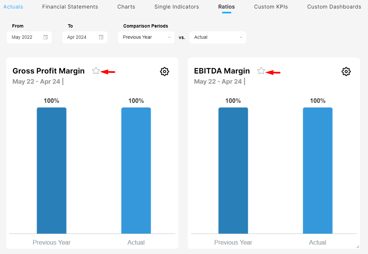
To add charts to your custom dashboard, navigate to sections like Charts or Ratios ✔️ Next to the name of each chart, you'll see a star ⭐ icon.
Click on the ⭐ icon for the chart you want to include in your custom dashboard ✅
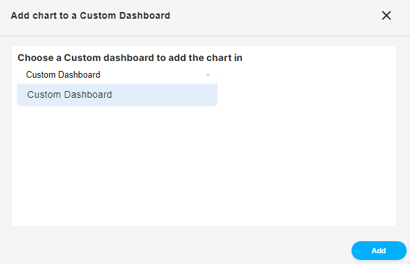
Select the name of your custom dashboard, and click "Add" ✅ By doing so, the selected chart to your chosen custom dashboard. Repeat this process to add additional charts. Let's add a couple more charts to enhance our dashboard.
Step 3: Managing Your Custom Dashboard
You have the flexibility to reorder the charts within your custom dashboard by simply dragging and dropping them into the desired order. Additionally, you can resize the charts by dragging the bottom right corner to adjust their dimensions.
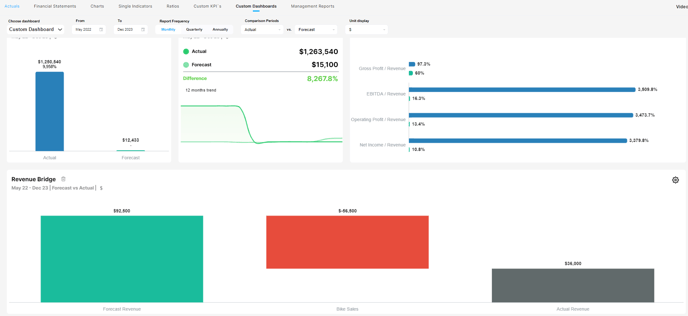
🔎 If you ever want to remove a chart from your custom dashboard, click on the trash can icon next to the chart's name within the custom dashboards section.
Step 4: Creating Multiple Custom Dashboards
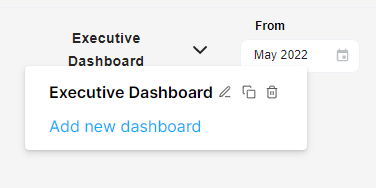
If you need to create additional custom dashboards for different purposes, you can do so by clicking on the name of the custom dashboard in the top left corner and selecting "Add New Dashboard".
Step 5: Customizing Reporting Settings
In the top navigation menu, you can easily select the date for which you want to view your reports. Additionally, choose the reporting frequency of your charts—whether you want them displayed monthly, quarterly, or annually.
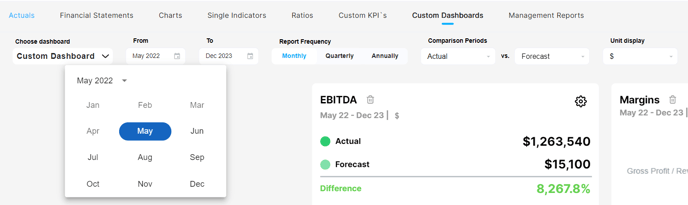
Lastly, select the two comparison periods you want to analyze. Similar to previous sections, you can compare actual results versus the forecast for the same period, the same period in the previous year, or the previous period.
Tailor your dashboards to your specific needs, monitor the charts that are most relevant to you, and gain meaningful insights quickly and efficiently.
❣️ Check out our easy-to-follow video tutorial for a visual demonstration on creating Custom Dashboards.
Related Articles
How does the Actuals section work in Dashboards?
In Modeliks Dashboards, the section called Actuals allows you to input the financial results of your business. Actual financial results are the real financial results of your business for the previous months and years, as recorded in your accounting ...How to create a Custom KPI List?
Custom KPIs offer valuable insights tailored to your business's unique value drivers and indicators. KPI stands for Key Performance Indicators - Custom KPIs offer valuable insights tailored to your business's unique value drivers and indicators. ...What kind of Charts are available?
Discover revenue breakdowns, cost analysis, asset and liability insights, and the popular bridge & waterfall charts. The beauty of these charts lies in their automatic generation, making them incredibly convenient for you. With just a few clicks, you ...Financial Statements: How does it work?
Basically, the Financial Statements tab in Dashboards helps you analyze and compare your financial performance effortlessly. Let's discover how it works in simple terms ? Step 1: Choose Your Statement You can start by selecting the financial ...How to select Single Indicators in Modeliks?
Indicators serve as measurable metrics that offer insights into various aspects of a business's financial performance. In Modeliks, under the Dashboards module, you can easily access the "Single Indicators" section, which contains all the relevant ...